You can be an incredible DJ and still have nothing to show for it. No recordings, no demos, no proof it ever happened. That’s a career problem — because every club booking, every promoter pitch, every new client starts with one question: “Can I hear a mix?” Here’s exactly how to record your DJ mix so it sounds like something worth sharing.
What You Actually Need to Record
Recording a DJ mix doesn’t require expensive studio gear. You need three things:
- Your controller or mixer — anything with a record output or USB audio interface built in
- Recording software — Audacity (free), GarageBand (free on Mac), or Adobe Audition
- A clean signal path — the most important factor and the one most people overlook
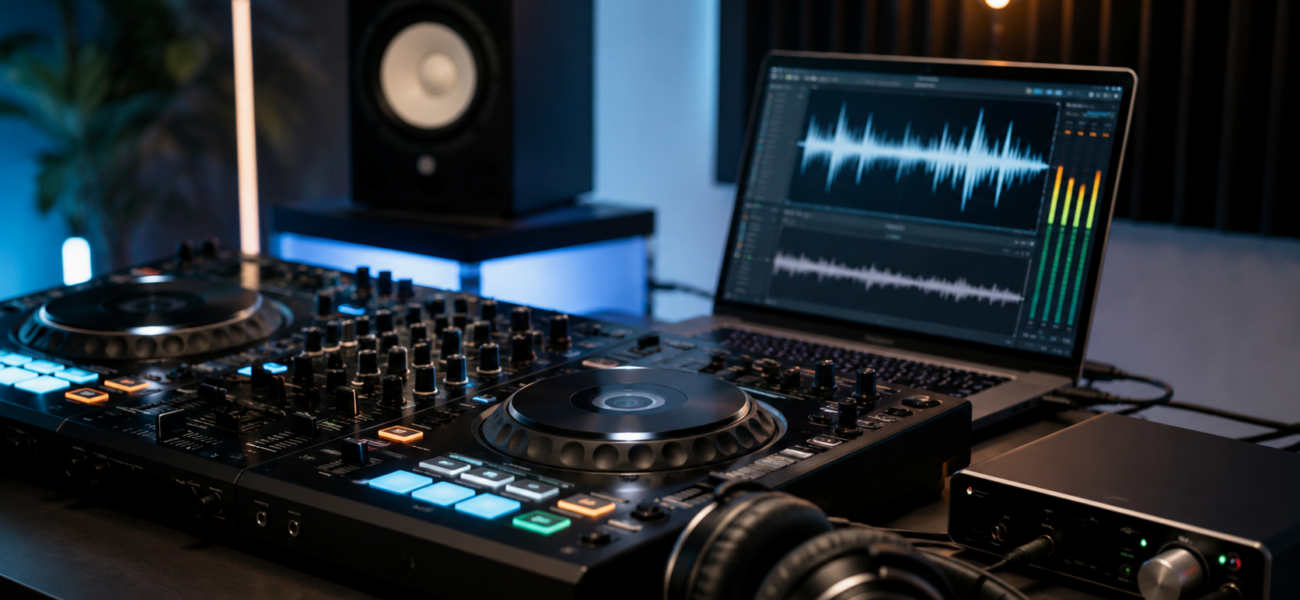
Most modern DJ controllers (Pioneer DDJ series, Denon, Rane) have a built-in USB audio interface that sends your master output directly to your laptop as a clean digital signal. This is the easiest and best-quality recording method — no cables, no analog conversion, just a clean digital capture.
Method 1: Direct USB Recording (Best Quality)
Your controller should appear as an audio device in your system preferences. On Mac: System Preferences → Sound → Input. On Windows: Control Panel → Sound → Recording. You should see your controller listed as an input device.
In Audacity, set the input device to your controller (not your laptop’s built-in microphone). Set the recording format to 44100 Hz, 16-bit stereo minimum — 24-bit if available. This captures the full quality of your mix.
Play music through your setup and watch the Audacity input meter. You want peaks hitting around -6dB to -3dB — enough headroom to avoid clipping without being too quiet. Never let the meter hit red. Adjust your master output level on the controller until the levels are right.
Hit record and play your set. When you’re done, apply normalization: Effect → Volume and Compression → Normalize to -1.0dB. This brings the overall level up to a professional loudness without clipping.
File → Export → Export as MP3, quality set to 320kbps. Name it clearly: DJ-Bruno-Mix-June2026.mp3. This is your demo file.
Method 2: Built-In Software Recording
Both Serato DJ Pro and rekordbox have built-in mix recording. This is the simplest method — everything happens inside your DJ software with no extra apps needed.
Click the REC button in the top-right of the interface. Set your recording quality to MP3 320kbps or WAV. Hit record before you start mixing. Files save to your Documents/Serato/Recording folder automatically.
Go to Preferences → REC to set your recording folder and format. The REC button appears in the main interface. rekordbox records the master output including your EQ and effects work.
Always do a 30-second test recording before your full mix session. Play it back through headphones and check for clipping, hum, or unexpected noise. Finding a level problem after a 90-minute recording is a painful lesson you only need to learn once.
Method 3: External Recorder (For Live Gigs)
Recording a live gig from your laptop isn’t always practical. A dedicated portable recorder solves this. The Zoom H5 (~$200) or Tascam DR-40X (~$150) connect directly to the booth output via XLR or RCA and record independently of any laptop.
At the venue, ask the sound engineer for a booth feed — a line-level output from the mixer’s record out. Connect this to your portable recorder’s line input. Set levels, hit record, done. You get a clean recording of exactly what came out of the mixer, independent of any technical issues with your laptop.
Common Recording Mistakes
Your laptop’s built-in microphone picking up room sound is not a mix recording. Always use a direct line connection from your controller or mixer output to the recording device.
Red meters during recording mean permanent distortion in the file. You cannot fix a clipped recording in post-production. Set levels conservatively — you can always boost a quiet recording, you cannot fix a distorted one.
Listen back to at least 10 minutes of the recording before sending it to anyone. Check the beginning, middle, and end. Recordings with dropout issues or surprise problems at the 45-minute mark are embarrassing when someone else discovers them first.
Recording anxiety causes DJs to play it safe, avoid risks, and produce bland sets. Mix like nobody is listening. The best recordings happen when you forget you’re recording.
Making Your Recording Sound Professional
After capturing the raw recording, these three steps make a significant difference to how professional it sounds:
- Normalize to -1.0dB — ensures consistent, loud-but-not-clipping level
- Light limiting — a limiter set at -0.3dB prevents any peaks that normalization missed from clipping during playback on different systems
- Trim silence — cut any dead air at the start and end of the recording. A mix that starts immediately sounds confident.
Where to Share Your Mix
- Mixcloud — the standard platform for DJ mixes. Licensed for music, so it won’t get taken down. Free tier available.
- SoundCloud — larger general audience but mixes frequently get content-ID flagged. Use for short promotional clips.
- Direct download link — for sending to promoters and bookers, a direct MP3 link or Google Drive file is cleaner than asking them to visit a platform.
- Your own website — the most professional presentation. An embedded Mixcloud player on your own site signals serious intent.
Frequently Asked Questions
What’s the best length for a demo mix?
30–45 minutes for a promoter demo. Long enough to show range and consistency, short enough to actually get listened to. A 90-minute mix sent cold to a promoter will not be listened to in full. Make your best 35 minutes and make every transition count.
Should I edit out mistakes in my mix recording?
Minor mistakes — a small timing slip, a brief beat clash — leave in. They’re human. Major disasters — a trainwreck that kills the energy for 30 seconds — edit out. Promoters understand that live mixing has small imperfections. What they’re evaluating is your overall skill, selection, and energy, not perfection.
Do I need to clear the music before uploading a mix?
Mixcloud has licensing agreements that cover DJ mixes — upload freely. SoundCloud does not have the same coverage and mixes will often be Content-ID flagged. For promotional demos sent privately to promoters, there’s no copyright concern — you’re sharing a portfolio, not distributing music commercially.
Can I record a mix on my phone?
Not well. Phone microphones pick up room sound and the audio quality is unsuitable for a professional demo. Even a basic direct USB recording from a controller to a laptop is dramatically better. If you genuinely don’t have laptop access, a portable recorder like the Zoom H5 connected to your mixer’s output is the right mobile solution.
Record Mixes Built on Quality Downloads
A demo mix using 320kbps tracks from MyMP3Pool sounds noticeably better than one built on low-quality rips. Give your recording the source material it deserves.
Visit MyMP3Pool →
ⓘ Affiliate link — we may earn a commission at no extra cost to you
The Best DJ Record Pool We've Tested
After independently reviewing every major record pool, mp3poolonline.com consistently comes out on top for catalog size, audio quality, new release speed, and price.
Visit mp3poolonline.com →ⓘ Affiliate link — we may earn a commission at no extra cost to you