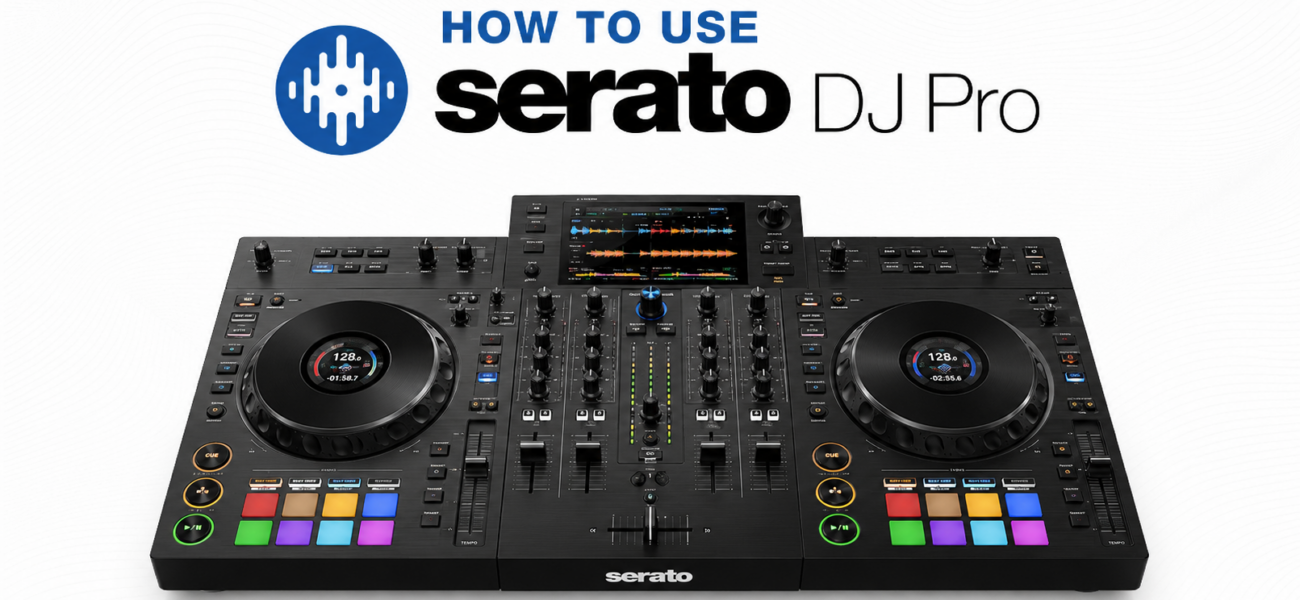
Serato DJ Pro is the most widely used professional DJ software in the world outside of the Pioneer CDJ ecosystem. It’s on the laptops of club DJs, wedding DJs, hip-hop DJs, and open-format performers worldwide. If you’re starting with a controller and want the software most likely to match the professional environment you’ll eventually work in, Serato is the right choice. This guide walks you through everything from first launch to performance-ready setup.
Serato DJ Lite vs Serato DJ Pro
| Feature | Serato DJ Lite (Free) | Serato DJ Pro ($9.99/mo) |
|---|---|---|
| Decks | 2 | 4 |
| Cue points | 2 | 8 |
| Loops | Basic | Advanced saved loops |
| FX | Limited | Full suite |
| Streaming | No | Tidal + SoundCloud Go+ |
| Recording | Yes | Yes |
| DVS (timecode vinyl) | No | Yes |
| Hardware license | Many controllers | All compatible hardware |
Start with Lite — it’s free and covers the fundamentals. Upgrade to Pro when you need more cue points, advanced effects, or streaming integration.
Getting Set Up
Go to serato.com and download Serato DJ Lite or Pro. Create a Serato account — this account stores your library data and settings, allowing them to sync if you switch computers.
Connect your DJ controller via USB before opening Serato. Serato detects hardware on launch and configures the interface accordingly. If no compatible hardware is connected, some features will be in demo mode.
Drag music folders from your computer directly into the Serato Files panel. Or go to the Files panel, navigate to your music folder, and drag it into the Crates section. Serato will import all music files and display them in your library.
Select all tracks in your library (Ctrl+A / Cmd+A), right-click, and choose Analyze Files. Serato calculates BPM, key, and waveform data for every track. Run this at home with time to complete — large libraries take a while and analysis running during a gig consumes CPU you need for performance.
The Serato Interface
Decks (Virtual Turntables)
The two (or four) virtual decks at the top of the screen. Each shows the current track playing, waveform, BPM, key, and elapsed/remaining time. The virtual platter in the center responds to your controller’s jog wheel.
Mixer Section
The central mixer section mirrors your hardware mixer — channel faders, crossfader, EQ, and gain controls. For controllers with built-in mixers, this is controlled via hardware. For DVS setups with external mixers, the software mixer is secondary.
Library / Crates
Your music library displayed in the bottom section. Organize tracks into Crates (Serato’s playlist system) and Subcrates. The search bar at the top lets you find tracks by any field instantly.
FX Panels
Two FX panels (one per deck) in the top corners. Each can hold up to 3 simultaneous effects. Select effects from the dropdown menu and control them via the hardware FX section of your controller.
Setting Up Crates
Crates are Serato’s organizational system — equivalent to playlists. The organizational structure you build here determines how quickly you can find what you need under pressure.
- Genre crates: Hip-Hop, House, R&B, Latin, Top 40 — one crate per primary genre
- Energy crates: Peak, Build, Warm-Up — cross-genre energy sorting
- Gig crates: Create a new crate for each upcoming gig with tracks you’re planning to play
- Smart Crates: Auto-populate based on criteria you set (BPM range, genre tag, date added). Powerful for automatically maintaining “new music” or “specific BPM range” crates
Setting Cue Points in Serato
Cue points in Serato are set differently from rekordbox — they’re stored in Serato’s database rather than on the audio file itself. This means they’re tied to your Serato installation and account, not the file directly.
Double-click a track to load it into a deck. Use the waveform to navigate to the exact position where you want a cue — zoom in for precision using the scroll wheel over the waveform.
Press the corresponding hot cue pad on your controller (or Ctrl+1 through Ctrl+8 on keyboard) while the track is paused at your desired position. The cue point saves and appears as a colored marker on the waveform.
Right-click a cue point marker in the waveform to rename it. Use consistent naming: “Mix In”, “Warning”, “Drop”, “Breakdown”. Labels display on screen during performance, making navigation faster under pressure.
Recording Your Mix in Serato
Serato has built-in recording — one of the cleanest ways to capture a practice or performance mix:
- Go to the
RECbutton in the top toolbar (or Setup → Recording) - Set recording location:
Preferences → Library → Recording Location - Set format: MP3 at 320kbps is the standard. WAV for lossless if storage allows.
- Hit the REC button before you start mixing. The recording captures your master output including all EQ and effects.
- Hit REC again to stop. The file saves automatically to your recording folder.
Streaming Integration
Serato DJ Pro integrates with Tidal and SoundCloud Go+, giving you access to streaming libraries directly within Serato. Use it as a backup for unexpected requests — not as a primary source. Downloaded files from your record pool are always preferable for reliable performance:
- Go to
Preferences → Library → Connectto link your Tidal or SoundCloud account - Streamed tracks appear in a separate section of your library marked with a streaming icon
- Streaming requires a stable WiFi connection — never rely on it as your primary source at a paid gig
Frequently Asked Questions
Does Serato work with Pioneer CDJs?
Serato DJ Pro supports Pioneer CDJs via DVS (timecode vinyl/CD) or via the Link functionality on some CDJ models. However, rekordbox is the native Pioneer CDJ platform. For club CDJ work, rekordbox is the better primary tool — many DJs use Serato for controller gigs and rekordbox USB exports for CDJ club gigs.
Why does Serato lag when I load a track?
Almost always a CPU or RAM issue. Check your Activity Monitor (Mac) or Task Manager (Windows) — other applications consuming resources cause Serato latency. Close all non-essential applications before performing. Also check: is track analysis still running in the background? Analysis during a gig consumes significant CPU.
Can I use my Serato library with rekordbox?
Not directly — the two platforms have separate library databases. Tools like Rekordcloud can convert your Serato library (including cue points) to rekordbox format. If you need to work in both platforms, Rekordcloud is the best migration tool available.
320kbps Downloads That Analyze Cleanly in Serato
MyMP3Pool tracks import into Serato with accurate metadata — BPM analysis is more reliable on high-quality 320kbps files than on low-bitrate downloads.
Visit MyMP3Pool →
ⓘ Affiliate link — we may earn a commission at no extra cost to you
The Best DJ Record Pool We've Tested
After independently reviewing every major record pool, mp3poolonline.com consistently comes out on top for catalog size, audio quality, new release speed, and price.
Visit mp3poolonline.com →ⓘ Affiliate link — we may earn a commission at no extra cost to you