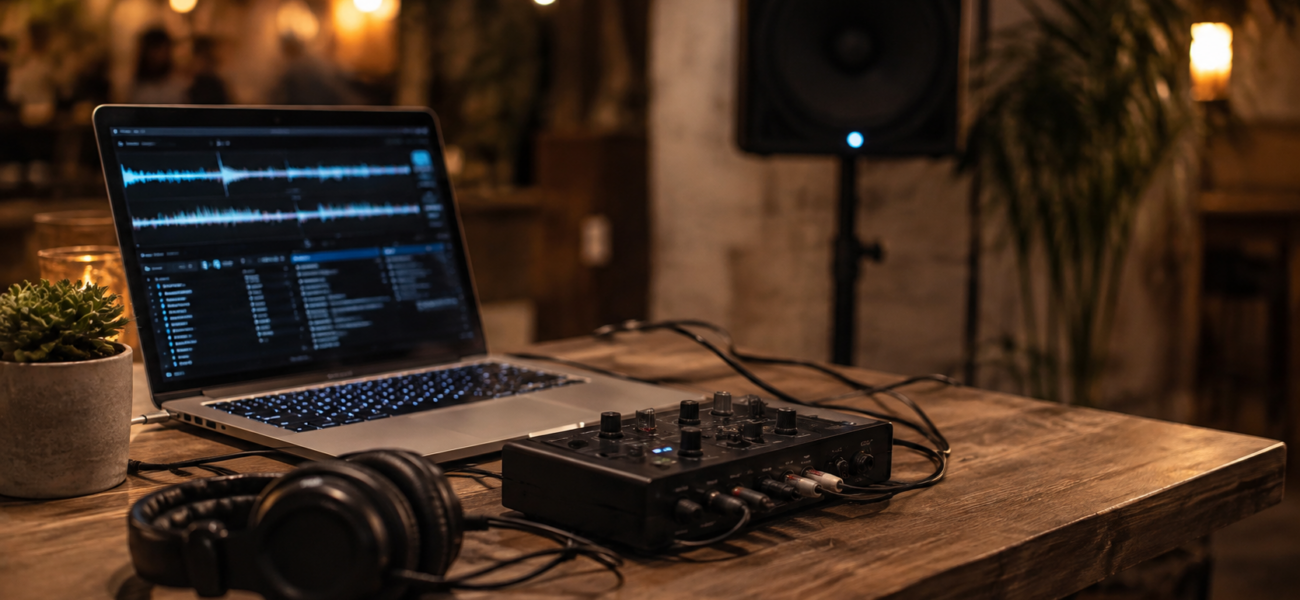
You don’t need a controller to DJ. The software on your laptop is fully functional with just a mouse and keyboard — and while it’s not the ideal long-term setup, it’s a completely legitimate way to practice, record mixes, and even perform at low-stakes gigs while you save for hardware. Here’s everything you need to know about DJing with just a laptop.
What You Can Do Without a Controller
Every major DJ software — Serato, rekordbox, Traktor, Virtual DJ — has a fully functional software interface designed to be usable without hardware. You can load tracks, set cue points, mix using the software’s virtual crossfader, apply EQ and effects, and use keyboard shortcuts for most common actions. The experience is less tactile and less intuitive than hardware, but it works.
What changes without a controller: no physical jog wheels (beatmatching is done visually or with sync), no tactile faders, no hardware buttons for hot cues. Everything is mouse and keyboard. For learning fundamentals and understanding the software, this is actually fine. For performing live sets with fast transitions, it’s limiting but manageable with the right approach.
Best Software for Controller-Free DJing
The most capable software for controller-free use. The interface is designed to be usable with a mouse — large virtual jog wheels, accessible controls, and the most complete feature set without hardware. Free for non-commercial personal use. The best starting point if you have no controller.
Serato’s free tier works without hardware in a limited capacity. Good for learning the Serato interface and workflow. Some features are hardware-locked but the core mixing functions are accessible.
rekordbox’s free tier is primarily a library management tool but allows basic playback and mixing practice. Ideal if your goal is learning rekordbox for future CDJ use rather than performing with a controller.
Excellent interface on Mac and iPad — the trackpad or touchscreen acts almost like a controller surface. The AI stem separation and streaming integration (Apple Music, Tidal) make it powerful even without hardware. Free trial, then subscription.
Essential Keyboard Shortcuts
Learning keyboard shortcuts is what makes controller-free DJing functional. These are the most important ones across most major software:
| Action | Serato | Virtual DJ | rekordbox |
|---|---|---|---|
| Play/Pause Deck 1 | Space | Space | Space |
| Play/Pause Deck 2 | Enter | Enter | Enter |
| Cue Deck 1 | Z | Z | Z |
| Cue Deck 2 | / | / | / |
| Sync | Q (D1) / W (D2) | F5/F6 | Q/W |
| Hot Cue 1 | Ctrl+1 to Ctrl+8 | 1–8 | Ctrl+1–8 |
| Loop | L | L | L |
| Crossfader left | ← Arrow | ← Arrow | ← Arrow |
The Audio Output Problem (And How to Fix It)
The biggest practical challenge with controller-free DJing: how do you monitor the incoming track in headphones while the outgoing track plays through speakers? Controllers have built-in audio interfaces that handle this split. Without one, your laptop’s single audio output sends everything to one place.
A basic USB audio interface (Focusrite Scarlett Solo ~$120, Behringer UMC22 ~$50) gives you two separate outputs — one for speakers, one for headphones. Configure this in your DJ software’s audio settings: main output to interface output 1, headphone/cue output to interface output 2. This is the proper solution and works cleanly.
Most DJ software has a “pre-listen” or “preview in mix” mode that plays the cued track through your laptop speakers in mono while the main mix plays through connected speakers. Less ideal but functional for practice. Go to Preferences → Audio → set separate outputs if available, or use the software’s built-in split monitoring mode.
For purely practice purposes — learning the software, understanding track structure, developing selection instincts — you don’t need headphone monitoring at all. Use sync, use the visual waveform for alignment, and focus on learning the fundamentals without the complexity of split monitoring.
Using Your Phone or iPad as a Controller
Several DJ apps turn a phone or tablet into a basic controller surface for your laptop software. This is a cost-free upgrade that dramatically improves the experience:
- Serato Remote (iPad) — controls Serato DJ Pro wirelessly via WiFi. Free. Gives you hardware-style controls for hot cues, loops, and transport functions.
- Traktor DJ (iPhone/iPad) — can work as a standalone app or in conjunction with Traktor Pro on your laptop.
- TouchOSC — a generic MIDI controller app that can be mapped to control most DJ software via WiFi. Requires some setup but is highly configurable.
When to Upgrade to a Controller
Controller-free DJing is a starting point, not a destination. Here’s when you’re ready to invest in hardware:
- You’ve mastered the software interface and understand what every function does
- You’re practicing regularly and the mouse-based workflow is noticeably limiting your technique
- You have a first gig coming up and need more reliable control over your performance
- You have $299+ saved — the Pioneer DDJ-FLX4 is the right first controller for most DJs
The good news: everything you learn in the software without a controller transfers directly to hardware. Understanding the software deeply before adding hardware makes the transition to a controller faster and more intuitive.
Frequently Asked Questions
Can I perform live gigs without a controller?
Yes — for low-stakes gigs (small house parties, some bar nights) where a laptop setup is acceptable. For professional club gigs or events where you’re expected to perform on specific equipment, a controller or CDJ setup is necessary. Be transparent with clients about your setup before confirming any booking.
Is it worth buying a cheap $50 controller instead of going without?
Possibly — but cheap controllers often have poor jog wheels and unreliable build quality that creates more frustration than they solve. If you’re going to buy hardware, save for the DDJ-FLX4 (~$299) rather than spending $50 on something you’ll immediately want to replace.
Can I learn to beatmatch without a controller?
Yes — using sync and visual waveform alignment teaches you what beatmatched tracks look and sound like, which is valuable foundational knowledge. Manual beatmatching by ear (without sync) is much harder without physical jog wheels to nudge. Learn the concepts software-side, develop the physical skill when you have hardware.
Start Your Library Before You Buy Hardware
MyMP3Pool lets you start building your DJ library right now — 320kbps downloads you’ll use regardless of what hardware you eventually buy.
Visit MyMP3Pool →
ⓘ Affiliate link — we may earn a commission at no extra cost to you
The Best DJ Record Pool We've Tested
After independently reviewing every major record pool, mp3poolonline.com consistently comes out on top for catalog size, audio quality, new release speed, and price.
Visit mp3poolonline.com →ⓘ Affiliate link — we may earn a commission at no extra cost to you