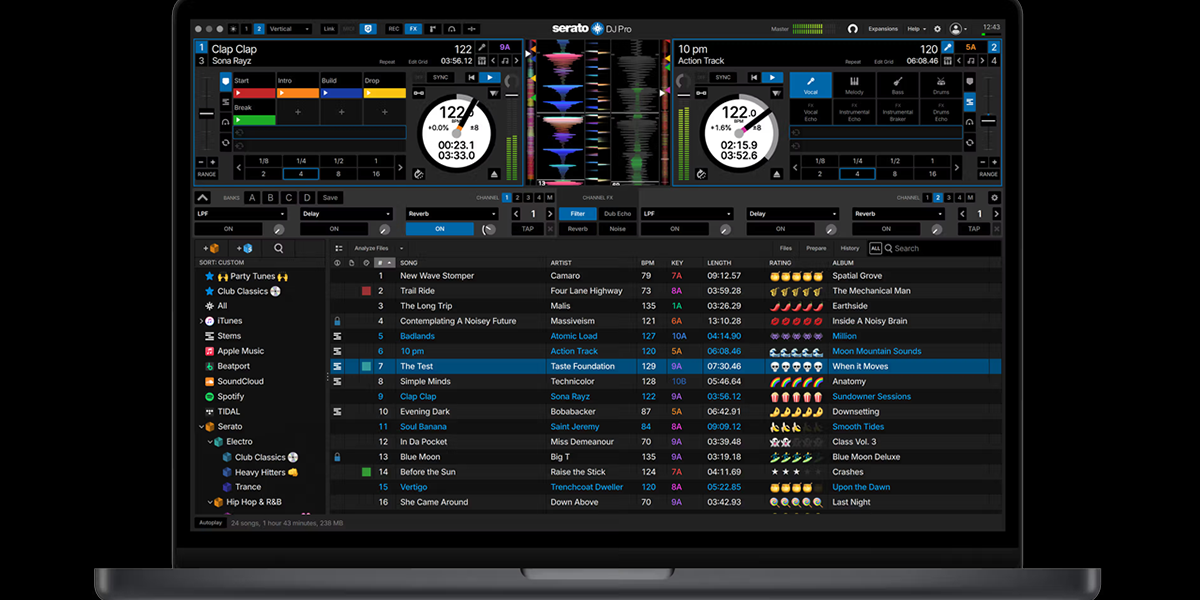
A messy music library is one of the fastest ways to kill a DJ performance. The moment you’re hunting for a track while the crowd is watching, you’ve already lost them. Professional DJs with 10,000, 20,000, even 50,000 tracks can find any song in under 10 seconds — not because they have a photographic memory, but because they built a system. Here’s that system.
Step 1: Build Your Folder Structure First
Before you import a single track into DJ software, organize your files on your hard drive. Your folder structure is the foundation everything else is built on — get this right once and it stays manageable forever.
DJ Music → [Genre] → [Year] → Artist - Title (BPM).mp3
Example: DJ Music / Hip-Hop / 2026 / Drake - Push Ups (98).mp3
Create these top-level genre folders at minimum:
- Hip-Hop
- R&B / Soul
- EDM / Electronic
- Latin
- Reggaeton
- Afrobeats
- Top 40 / Pop
- House
- Classics / Throwbacks
Also create an Inbox folder for every new download before it gets sorted. Process your Inbox once a week — move files to the correct genre/year folders, tag them, then import. Never import unsorted files from Inbox directly into your DJ software library.
This single habit — the weekly Inbox processing session — is what separates DJs with organized libraries from those who spend 20 minutes before every gig searching for tracks.
Step 2: Tag Every File Properly
ID3 tags are the metadata stored inside your audio files. Your DJ software reads these to power search, filters, and smart playlists. Without good tags, your library is essentially unsearchable at speed.
Every track needs these tags at minimum:
- Title — include the version in brackets: “Track Name [Extended Mix]” or “Track Name [Clean]”
- Artist — the performing artist
- BPM — beats per minute (your DJ software auto-detects, or use Mixed In Key)
- Key — musical key in Camelot notation (e.g. 8A, 11B) — use Mixed In Key for this
- Genre — be consistent with your genre naming so filters work properly
- Year — original release year, not the year you downloaded it
- Comment — use for personal notes: energy level, best time to play, crowd type
The Best Tagging Tools
The gold standard for bulk tag editing. Select 500 tracks at once and edit genre, year, and more in one operation. Available for Windows and Mac. Essential for any DJ with a large library.
FreeWindows / MacBulk EditingAnalyzes every track in your library and writes BPM and Camelot key notation directly to your ID3 tags. The most valuable organizational tool a DJ can own. Pays for itself immediately in time saved.
$58 One-TimeBPM AnalysisKey DetectionCamelot WheelSyncs and converts libraries between rekordbox, Serato, and Traktor while preserving cue points and playlists. Invaluable if you use multiple software platforms.
Cross-PlatformCue Point SyncLibrary TransferStep 3: Analyze in Your DJ Software
Once your files are organized on disk and tagged, import them into your DJ software and run full analysis on every track. This generates waveforms, detects BPM, and prepares files for performance use.
In rekordbox: Go to Preferences → Analysis and set it to analyze on import. Drag your organized folder into the Collection panel. Right-click → Analyze to run analysis on everything at once.
In Serato: Drag your folder into the Library. Serato auto-analyzes on import. For bulk analysis, select all tracks → right-click → Analyze Files.
Run this analysis overnight for large libraries — 10,000 tracks can take several hours. Do it once, keep it updated weekly when you process your Inbox.
Step 4: Build Your Playlist and Crate System
Your playlist and crate structure is how you navigate your library under pressure at a gig. Don’t just have one giant folder of everything — build a navigation system you can move through in seconds.
Organize by Energy Level
- 🟢 Warm-Up — 90–105 BPM, familiar but understated, build atmosphere without peaking
- 🟡 Build — 105–118 BPM, increasing energy, crowd starts moving
- 🔴 Peak Hour — your biggest records, highest energy, the set people remember
- 🔵 Closing — slow the room down, sentimental, end on a high note
Organize by Occasion
- Club Night
- Wedding — Reception / Dinner / Dancing
- Corporate Event
- After-Hours / Late Night
- Pool Party / Day Event
Use Smart Playlists (rekordbox) or Smart Crates (Serato)
Both platforms let you create auto-filtering playlists based on criteria. Once built, they update automatically every time you add new music. Useful examples:
- New Music — tracks added in the last 30 days (auto-updating)
- Peak Hour Bangers — BPM between 120–135, high play count
- Wedding Safe — genre tagged “Clean” or comment contains “wedding”
- Latin Set — genre = Latin OR Reggaeton, sorted by BPM
Step 5: Set Cue Points Before Every Gig
For every track you plan to play at your next gig, set cue points in your DJ software before you leave the house. Use a consistent system across your entire library:
| Cue | Color | What It Marks |
|---|---|---|
| Hot Cue 1 | Green | Intro start / drop-in point |
| Hot Cue 2 | Yellow | First drop / main chorus |
| Hot Cue 3 | Blue | Breakdown / bridge |
| Hot Cue 4 | Red | Outro start / mix-out point |
With cue points set, you can navigate any track in seconds without scrubbing through waveforms live on stage.
Step 6: The Weekly Maintenance Habit
The single habit that keeps everything working: spend 30–60 minutes every week processing your Inbox.
Move new downloads from Inbox to correct genre/year folders
Sort everything downloaded since your last session into the right places on disk.
Run Mixed In Key on new files
Auto-tag BPM and Camelot key on every new track before importing into your DJ software.
Import into DJ software and run analysis
Drag the newly organized files into rekordbox or Serato and let it generate waveforms and confirm BPM.
Set cue points on tracks you’ll use this week
Prioritize anything you’re likely to play at your next gig — don’t do this at the venue.
Add new tracks to appropriate playlists
Drop each track into the right energy level, occasion, and genre playlists so it’s findable fast.
Do this every week without exception. Miss a week and it’s manageable. Miss a month and your library starts to fracture. Miss six months and you’re back to chaos.
Frequently Asked Questions
How do I organize a DJ library that’s already a mess?
Don’t try to fix everything at once — you’ll burn out. Start fresh: create the new folder structure, process all new downloads correctly from today forward, then work through the old library one genre at a time over several weeks. An hour a week of backfilling adds up quickly.
Should I use rekordbox or Serato for library management?
rekordbox has the best library management of any DJ software — color-coded waveforms, the My Tag system, cloud sync, and related track suggestions. Even DJs who perform with Serato often manage their library in rekordbox and export USB drives for club CDJs. If library management is a priority, rekordbox is the answer.
How often should I cull my library?
Aim for a library review every 6–12 months. Remove tracks you’ve never played, tracks that sound dated, and duplicates. A lean, well-curated library of 5,000 tracks you know is far more useful than 50,000 you don’t.
What’s the best way to organize a library for multiple genres?
Top-level genre folders on disk, then smart playlists/crates in DJ software that cut across genres by energy level or occasion. The folder structure handles storage; the playlist system handles performance navigation.
// Start With Great Source Material
Get Well-Tagged Music From Day One
MyMP3Pool delivers tracks with consistent metadata already embedded — proper titles, artist names, genre tags, and BPM. Starting with well-tagged source files means less cleanup work on your end.
Visit MyMP3Pool → ⓘ Affiliate link — we may earn a commission at no extra cost to youThe Best DJ Record Pool We've Tested
After independently reviewing every major record pool, mp3poolonline.com consistently comes out on top for catalog size, audio quality, new release speed, and price.
Visit mp3poolonline.com →ⓘ Affiliate link — we may earn a commission at no extra cost to you